
PC Store Together Compatibility Guide: Sockets, Slots, Watts
Why PC Store Together rejects a part: CPU socket, memory slot, GPU clearance, PSU wattage and cooler height, with the check order that saves a build.
Quick answer: PC Store Together checks four things before a part installs: the CPU socket, the memory and storage slots, the case clearance for the GPU and cooler, and the PSU wattage with the right connectors. If a part is rejected, read the tooltip and fix that one rule instead of swapping the whole build.
Official source: PC Store Together on Steam ↗
Compatibility is the game's main puzzle. A part can be high-tier and still be wrong for the machine in front of you. The good news is that the build sheet tells you which rule failed, so you never have to guess. This page turns the four rules into a check order you can run before spending money. For the physical install sequence, use the build order guide→.
Rule 1: the CPU socket
The processor and the motherboard must share a socket. This is the first check because it decides the board, and the board decides the memory and the case.
- A CPU that does not seat is the wrong socket.
- A board that does not accept the CPU is the same problem from the other side.
- Do not force a CPU to fit. The game will not let it install, and the build sheet will flag it.
When you upgrade a customer's CPU, check the board before you quote the job. A "simple CPU upgrade" that needs a new board and memory is a different price.
Rule 2: memory and storage slots
Memory has a type and a slot. Storage has an interface and a key. Both are physical checks:
- Memory: the module must match the board's memory type and seat in a supported slot.
- Storage: the drive must match the board's storage interface; a drive in the wrong slot is not detected.
- Pairing: two sticks should go in the paired slots, not two random slots.
A machine with mismatched memory can post and still fail the load test. If a repair passes idle and fails under load, test the modules one at a time before replacing the board.
Rule 3: case clearance
The case has to fit the graphics card and the CPU cooler. This is the rule players forget because it is not printed on the part's spec line.
- A long card in a short case does not close.
- A tall cooler in a narrow case does not fit.
- A small case can also block airflow, which turns into a thermal problem later.
Check the case before you fall in love with the card. If the customer already owns the case, the case is the constraint, not the card.
Rule 4: PSU wattage and connectors
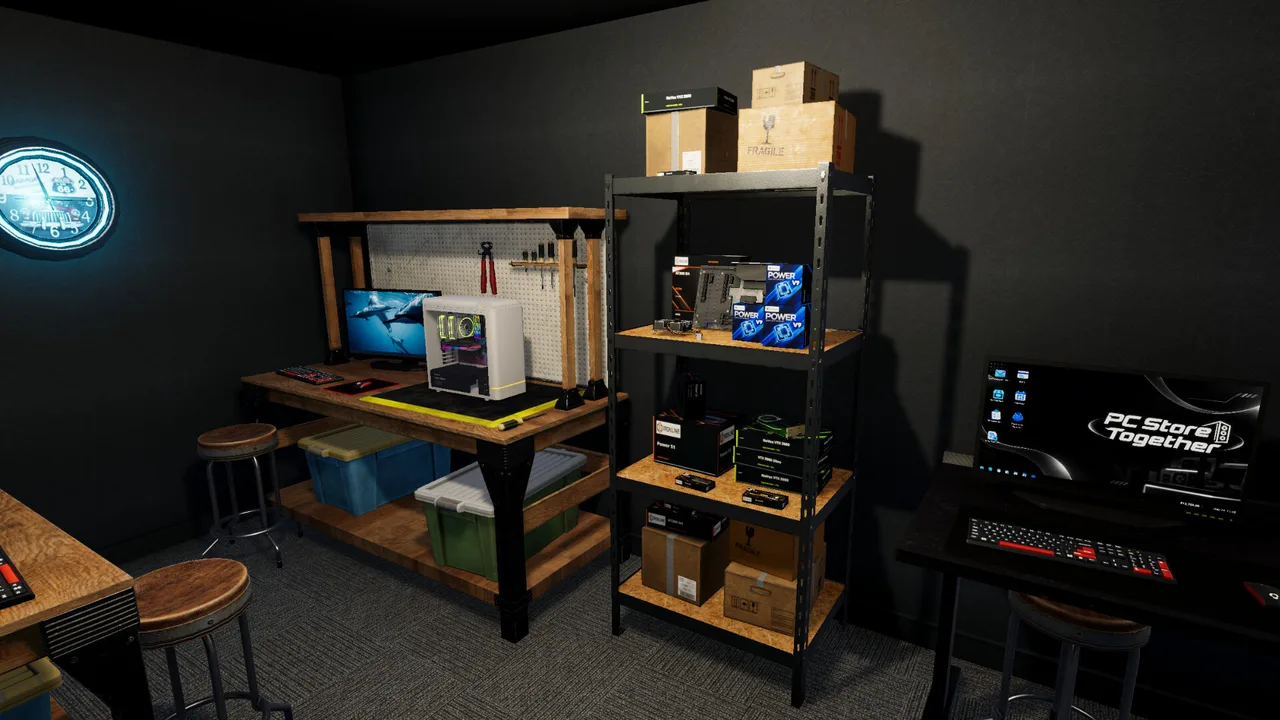
The power supply must cover the build's peak draw and have the connectors the parts need. Two failures look similar and are not:
- Too little wattage: the machine posts, then shuts down under load.
- Missing connector: the card or board cannot be powered at all.
The build sheet shows the total draw against the PSU rating. Leave headroom; a PSU that runs at its limit at idle is already failing under load. The PSU guide→ has the headroom rule and the shutdown symptoms.
The check order that saves money
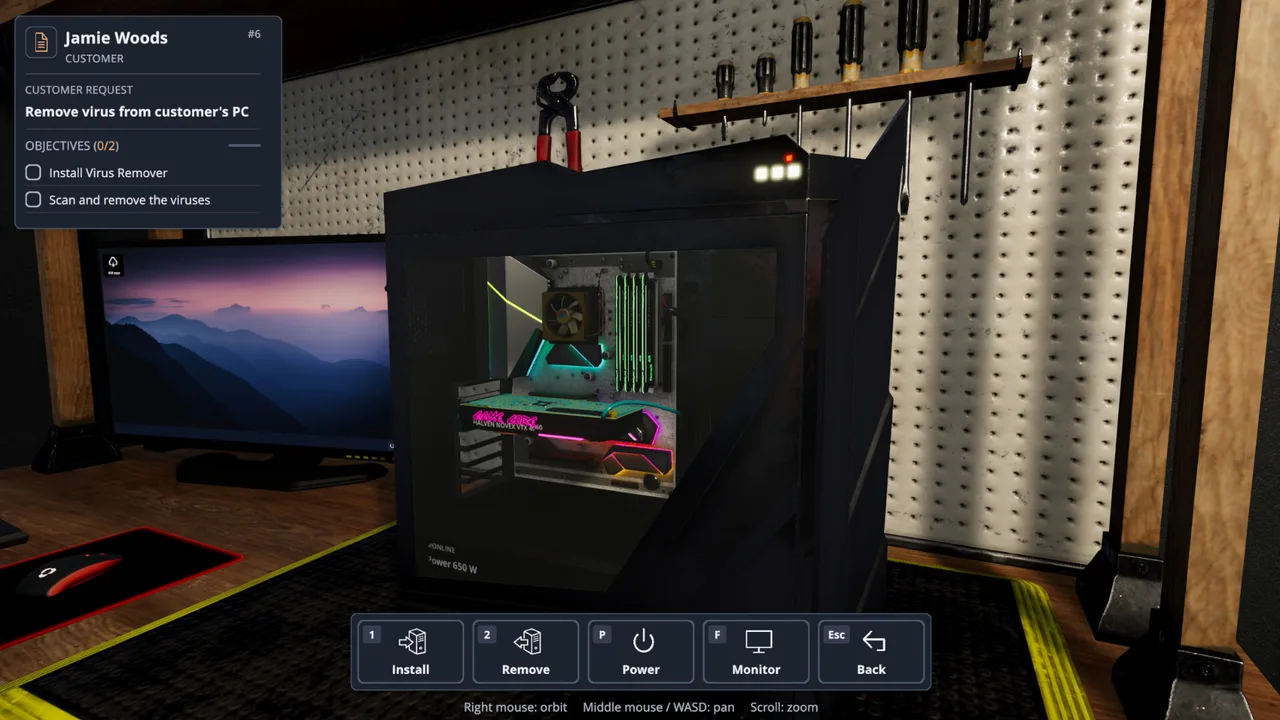
- Socket: CPU and board.
- Slots: memory type, storage interface.
- Clearance: GPU length, cooler height.
- Power: peak wattage and connectors.
- Cooling: does the cooler match the CPU's heat tier?
Run them in that order because each one can invalidate the next. A new CPU can force a board, which can force memory. A new GPU can force a PSU, which can force a case.
Symptoms that are compatibility, not failure
- The part will not install at all: wrong socket, slot or clearance.
- The machine posts with no display: card not seated or not powered.
- The machine shuts down under load: wattage or thermals.
- The machine beeps: memory seating is the first suspect.
- The machine boots but the drive is missing: storage interface or slot.
If the symptom is "nothing happens at all", start with the no boot guide→ before you replace parts.
A bigger PSU does not fix a wrong socket, a short case or a card that is not seated. Fix the rule that failed.
FAQ
Can I install a GPU that is too long for the case? No. The case clearance check stops it. Pick a shorter card or a larger case.
Does a higher-wattage PSU fix a no-boot? Only if the fault is wattage. A no-boot with no fans and no lights is usually power delivery or seating, not capacity.
Why does the build sheet show a warning but the part still installs? Some warnings are about headroom or thermals rather than a hard block. Treat them as a prediction of the load test, not decoration.
Do I need to match the cooler to the CPU? Yes. A cooler below the CPU's heat tier will throttle or shut down under load even if it physically fits.
Sources and further reading
- PC Store Together on Steam ↗ — official feature list.
- PC Store Together news hub ↗ — patch notes on repairs and compatibility.
- Sykes Games ↗ — developer site.
- PC Store Together on SteamDB ↗ — updates and player counts.