
PC Store Together Virus Removal: Scan, Clean, Verify
Remove viruses in PC Store Together: run the scan, clear every threat, verify the PC is clean and close the ticket.
Quick answer: Plug the machine in, run the virus scanner, remove every detected threat and run the scan again until it reports clean. Then test the machine normally and close the repair ticket.
Official source: PC Store Together on Steam ↗
Virus jobs look simple and still fail when a player removes one threat and hands the machine back with two more. The scanner reports a count; the job is finished when the count is zero and the scan confirms it. This page covers the full service. For the ticket flow around it, see the repair orders guide→.
What a virus job involves
A virus ticket usually includes:
- Connecting the machine to the shop's scan tool.
- Running a full scan.
- Removing every detected threat.
- Re-running the scan to confirm the machine is clean.
- Returning the machine to the customer.
The customer's symptom is usually pop-ups, slowdown or strange behavior. The scan is the diagnosis; you do not need to guess which file is infected.
Step by step
1. Put the machine on the bench
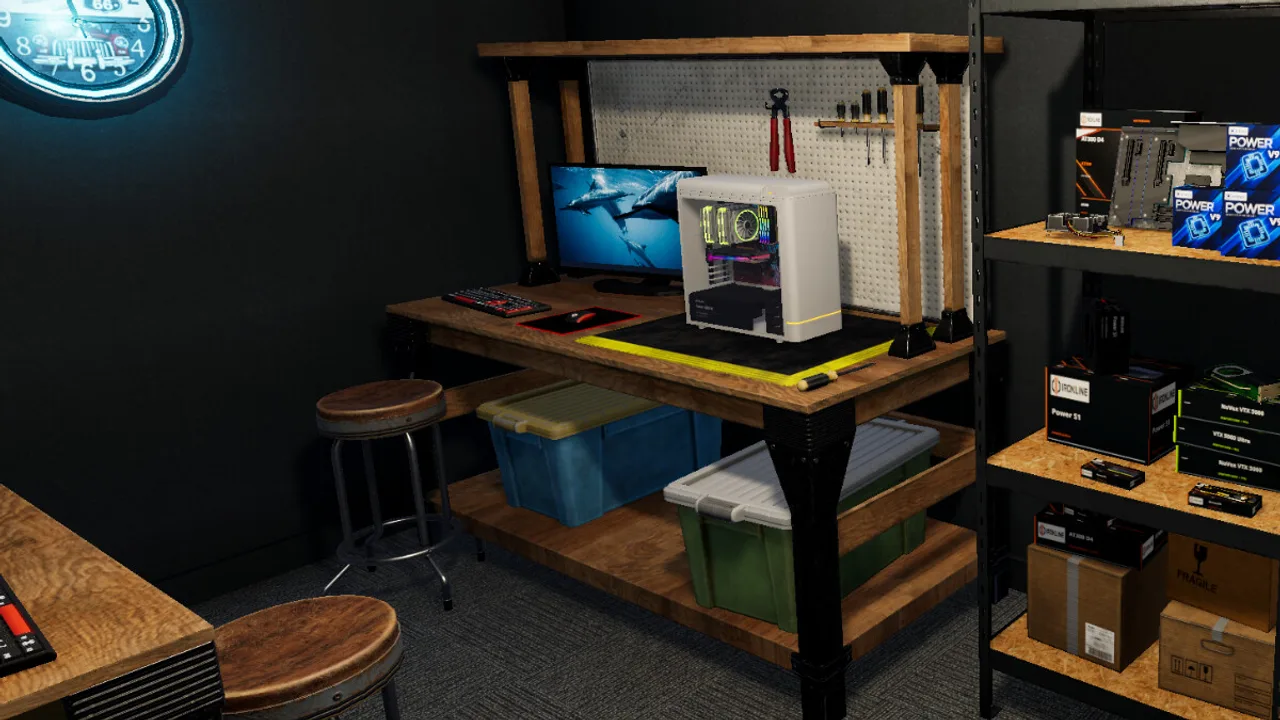
Accept the ticket and move the machine to the workbench. Do not scan a machine that is still in the customer's hands or on the sales floor.
2. Connect the scan tool
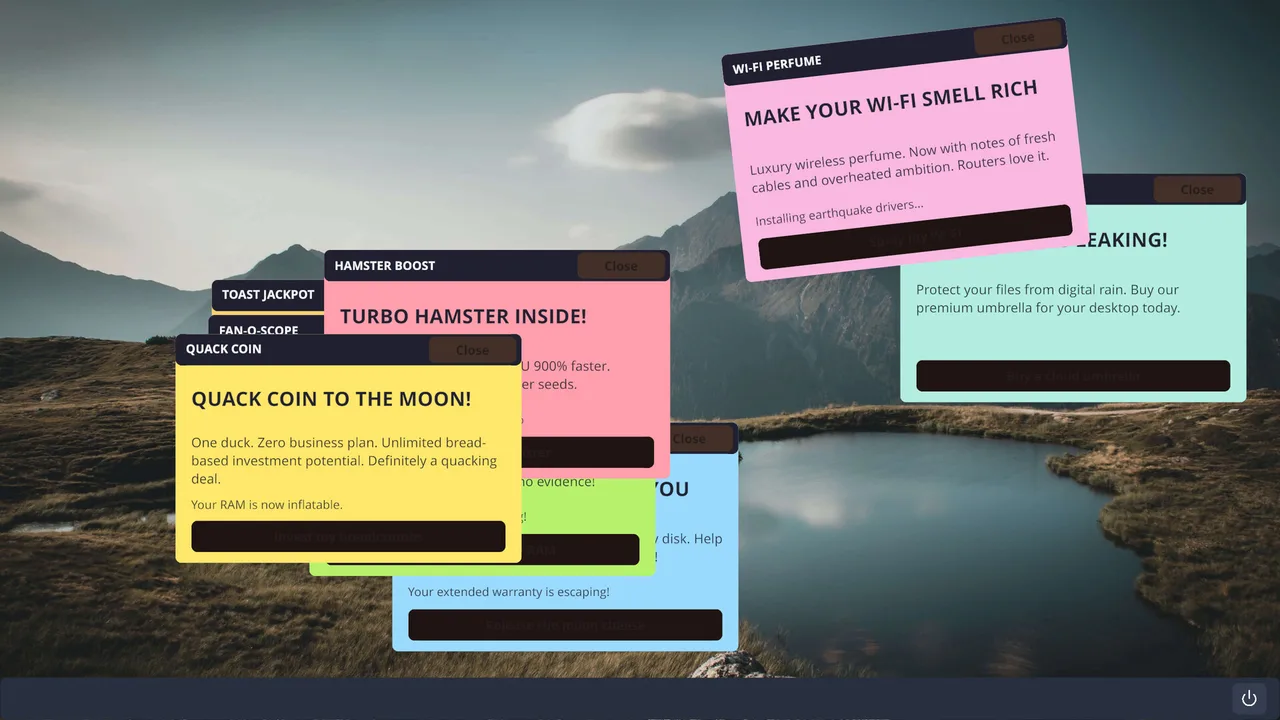
Use the shop's virus scanner on the machine. The tool is part of the repair workflow, not a part you install in a build.
3. Run the scan
Start the scan and let it finish. It reports the threats it found and offers to remove them.
4. Remove every threat
Remove all detected threats, not just the first one. The report gives you a count; use it as a checklist.
5. Scan again
Run a second scan. The job is clean only when the scanner reports zero threats. A machine that had three threats and now has one is not finished.
6. Test the machine
Boot it normally, check that it reaches the desktop and run a short load test if the ticket requires it. A clean scan does not prove the hardware is healthy; it proves the malware is gone.
7. Close the ticket
Tick the objectives, send the ready message and hand the machine over.
Why the second scan matters
The first scan finds what the scanner knows about. The second scan confirms the removal worked and that no threat was missed. Players who skip it hand over a machine with a remaining infection and get the ticket back.
Treat the scanner's "all threats removed" message as the target, not the first removal click.
Virus jobs and hardware faults
A slow machine is not always infected. Check:
- Storage health. A failing drive makes everything slow.
- Memory configuration. Mismatched or failing memory causes stalls.
- Temperature. A throttling CPU feels like a virus.
- Startup load. Too many background apps can mimic an infection.
If the scan is clean and the machine is still slow, move to the diagnosis flowchart→.
Pricing a virus job
A virus removal is a service, not a parts sale. Price it for the bench time and the risk:
- A single-threat cleanup is quick.
- A machine with multiple threats takes longer and needs a second scan.
- A machine that is also overheating needs a separate service.
Do not bundle a free dust service into every virus job. The pricing guide→ explains how to keep services profitable.
"I removed the ones I saw" is not a clean machine. The scanner's zero-threat result is the completion condition.
FAQ
How many threats does a virus job have? It varies. The scanner reports the count; remove all of them and scan again.
Why does the machine still have pop-ups after the removal? Either a threat remains or the machine was not restarted. Run the scan again and confirm zero.
Can a virus job damage the parts? The job is software work. The risk is an incomplete cleanup, not a hardware failure.
Do I need to test the machine after a scan? Yes. Boot it, confirm it runs normally and complete the ticket objectives.
Sources and further reading
- PC Store Together on Steam ↗ — repair and virus-job features.
- PC Store Together news hub ↗ — repair fixes.
- Sykes Games ↗ — developer site.
- PC Store Together on SteamDB ↗ — update history.