PC Store Together Controls: Keyboard, Mouse and Controller
PC Store Together controls for PC: movement, install and remove, power, monitor, rotate and zoom, plus the controller support added around launch.
Quick answer: Move with WASD, look with the mouse, install with 1 and remove with 2. P powers the machine, F opens the monitor and Esc backs out. Right-click rotates a part, the wheel zooms and the middle mouse button pans.
Official source: PC Store Together on Steam ↗
The controls are simple once the machine is on the bench; the confusion is which key applies to which object. A part in your hand, a part in the case and a part on the shelf use different prompts. This page is the reference. For the build sequence, see the build guide→.
Core controls
| Action | Input |
|---|---|
| Move | WASD |
| Look | Mouse |
| Install / place | 1 |
| Remove / pick up | 2 |
| Power the machine | P |
| Open the monitor | F |
| Back / cancel | Esc |
| Rotate a part | Right mouse button |
| Pan the view | Middle mouse button |
| Zoom | Mouse wheel |
The on-screen prompt shows the valid action for the object you are looking at. If 1 does nothing, the part is not compatible with that slot or you are not close enough.
Build mode controls
When you are working inside a case:
- 1 installs the selected part into the highlighted slot.
- 2 removes the part in the highlighted slot.
- Right-click rotates the part in your hand.
- Middle mouse or WASD pans the camera.
- Wheel zooms in and out.
The game highlights the valid slot. A red or missing highlight means the part does not fit, even if it is the right category.
Monitor and power
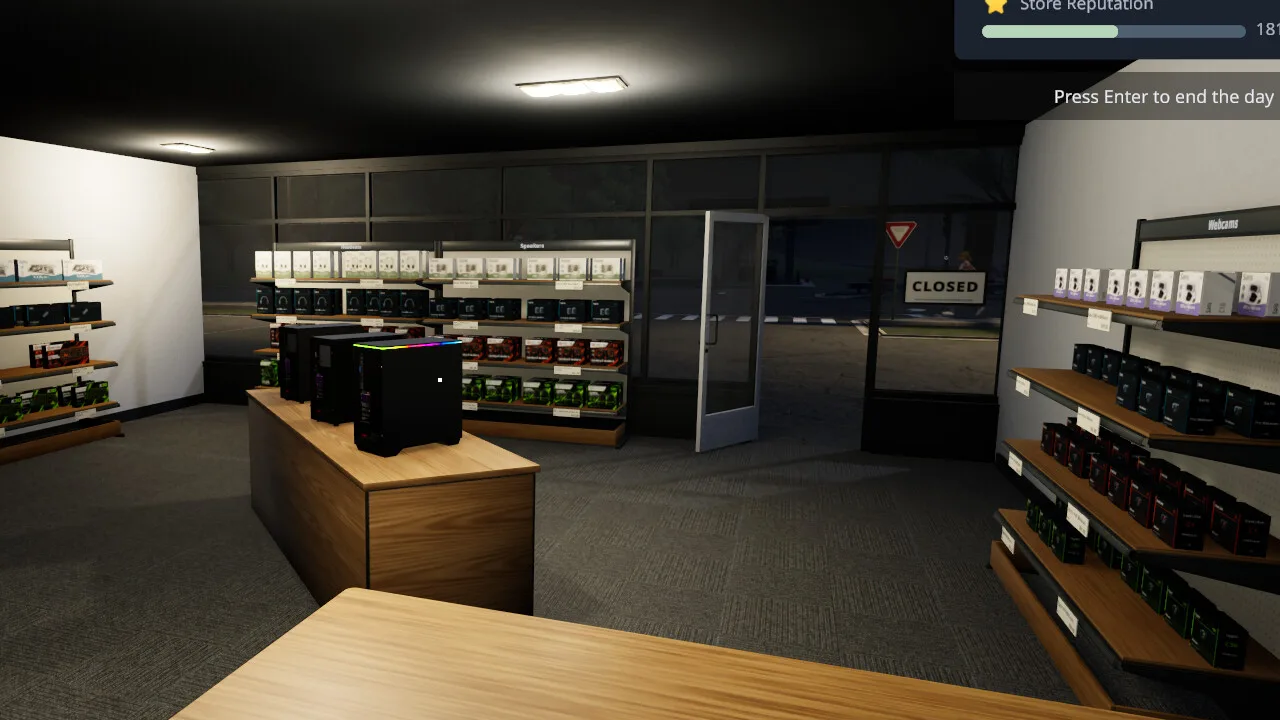
- P turns the machine on or off.
- F opens the monitor panel with temperatures, load and the benchmark.
You need the machine powered on to run the load test. You need it off to remove the side panel and most internal parts. A launch patch made it possible to refit the side panel and screws while the machine is on, but removing the panel still requires a shutdown.
Controller support
The game supports a controller, and the launch patches include controller navigation fixes. The layout follows the same actions: install, remove, power, monitor and back. If a prompt does not appear, switch back to the mouse and click the object once to reset the focus.
Controls in co-op
Each player controls their own character and camera. The shared shop means the same keys act on the same bench, so two players can fight over one machine. Agree on who owns which bench before the session.
The co-op guide→ covers the role split.
Common control problems
- 1 does nothing: the part is incompatible or the slot is not highlighted.
- Cannot remove a part: the machine is still powered on.
- Monitor is blank: the machine is off, or the panel is not connected.
- Camera is stuck: press Esc to exit the current interaction and reset.
- Controller prompt missing: click the object with the mouse once.
Removing the side panel while the machine is running is blocked. Shut down first, then work.
FAQ
How do I install a part? Look at the slot, select the part and press 1. The slot must highlight as valid.
How do I remove a part? Press 2 while looking at it. Power the machine off first.
Does PC Store Together support controllers? Yes, with controller navigation supported around launch.
How do I open the monitor? Press F while looking at the machine. The machine must be powered on.
Sources and further reading
- PC Store Together on Steam ↗ — controls and features.
- PC Store Together news hub ↗ — controller and UI fixes.
- Sykes Games ↗ — developer site.
- PC Store Together on SteamDB ↗ — update history.